
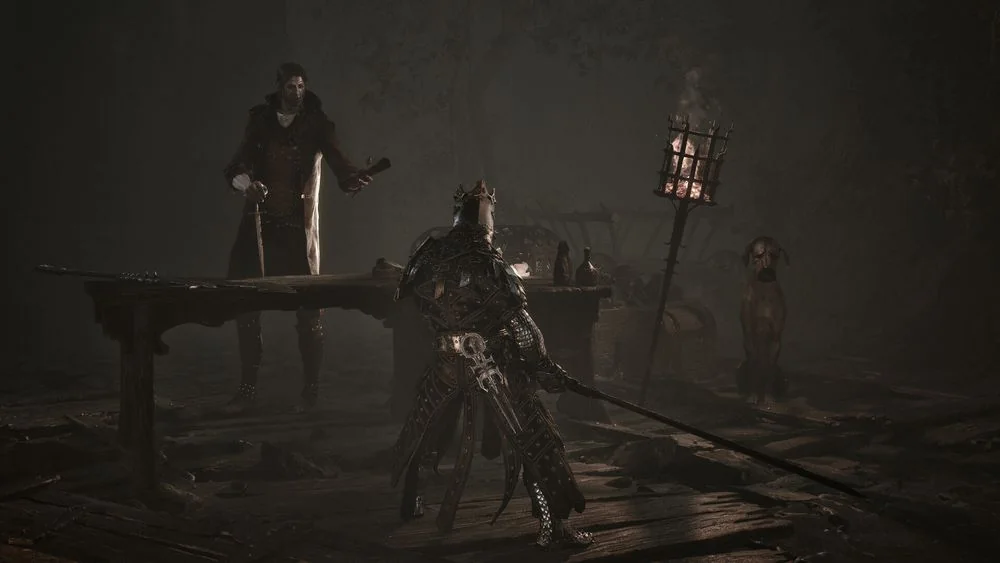
Start with the rating and the real test
Do not substitute one performance result for an official compatibility badge. The Steam page does not show a handheld rating. That means the purchase page alone cannot promise controls, text, performance, or every system feature will behave the same during a handheld session.
A useful test begins after the first boot rather than with a menu screenshot. Walk through a hub, cross an open route, enter a dungeon, and fight a boss with effects on screen. Each of those situations stresses a different part of the game and can reveal a problem that a quiet starting area hides.
Keep the test long enough to include suspend and resume. Check whether the game returns cleanly, whether inputs still register, and whether the next loading sequence behaves normally. A short combat clip does not answer those questions for a player who wants to carry a save between sessions.
Know the default handheld behavior
The default Steam Deck profile can hide the normal graphics menu at first boot. The controller menu displays a Steam Deck reference, indicating that the game recognizes the hardware profile. That convenience also limits what you can change until you deliberately expose the broader display options.
The default profile is described as the most stable choice in that test, although it has visual limitations. Lighting and fog presentation can be less appealing than a desktop configuration, but stability is often the first requirement for a long combat route. Keep the default profile for the first session so you have a baseline before changing any option.
Check text size and UI clarity while reading an item description, a route prompt, and a menu with several equipment choices. A game can technically run while still being awkward to manage on a smaller screen. If a prompt is hard to read during a quiet moment, it will be harder to read when an enemy is already attacking.
Use alternate settings carefully
Use the Steam launch option `SteamDeck=0 %command%` to expose the graphics menu. Enter it only if you want to trade the default profile for manual display control. Write down the original behavior first, because removing the handheld profile changes the basis of every later comparison.
With the graphics menu available, the test recommends setting Global Illumination to Medium to improve the lighting. It also recommends TSR as the upscaler for better fog presentation. These are practical starting points rather than a guarantee for every Deck revision, game version, or player tolerance for image quality.
Turning off upscaling can improve the image but can severely reduce performance. Change one option, then repeat the same route and encounter before changing another. If a visual improvement makes boss combat or a loaded area feel less stable, return to the prior setting instead of stacking more changes.
Test combat and loading, not only frame rate
Mortal Shell II relies on light and heavy attacks, blocking, dodging, parrying, Shell abilities, and sidearms. Those inputs should be tested during a real fight, including a moment when the Harbinger is severed from a Shell. A stable-looking route is not enough if a key action feels delayed when a Riposte opening appears.
Watch frame pacing during a large group, a fast camera turn, a weapon effect, and a transition into a new area. A single average frame-rate number can hide uneven pacing that makes timing harder. If a route feels inconsistent, use a familiar enemy so you can separate performance stutter from a move you simply have not learned yet.
Dungeons deserve their own check because hidden weapons and sidearms can sit behind small dungeon routes. Enter and leave one after adjusting settings, then open the inventory and use a Beacon afterward. A handheld setting is only useful if the full route remains manageable, not merely the open-world walk to its entrance.
Decide whether the Deck is right for this run
Steam Deck can be a workable way to play when you accept the default visual compromises or take time to tune the display options. It should not be treated as a universal replacement for a desktop setup. Your own device, storage state, game version, and tolerance for visual tradeoffs all affect the final result.
For a first session, use a short route that includes one Beacon, a dungeon transition, and a boss or dense group. If input, text, loading, and suspend all hold up there, extend the session before starting a long cleanup run. Keep a stable configuration once you find one instead of reopening the settings before every difficult encounter.
If the game behaves poorly after a setting change, restore the last stable configuration and test again. Record the launch option, display choices, and location of the problem so the result is useful the next time you update the game. That approach gives you a repeatable handheld setup without claiming a rating the store page does not display.
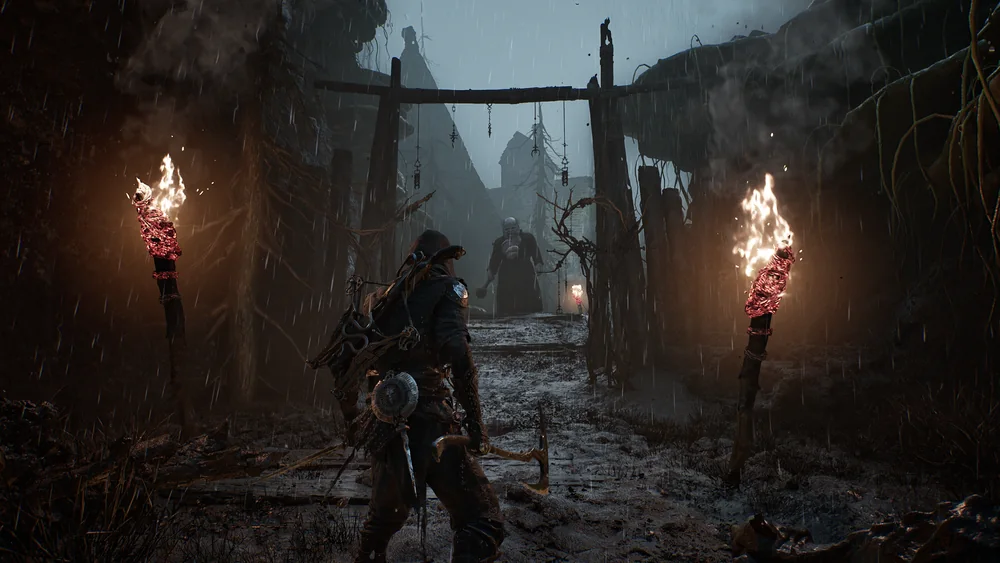
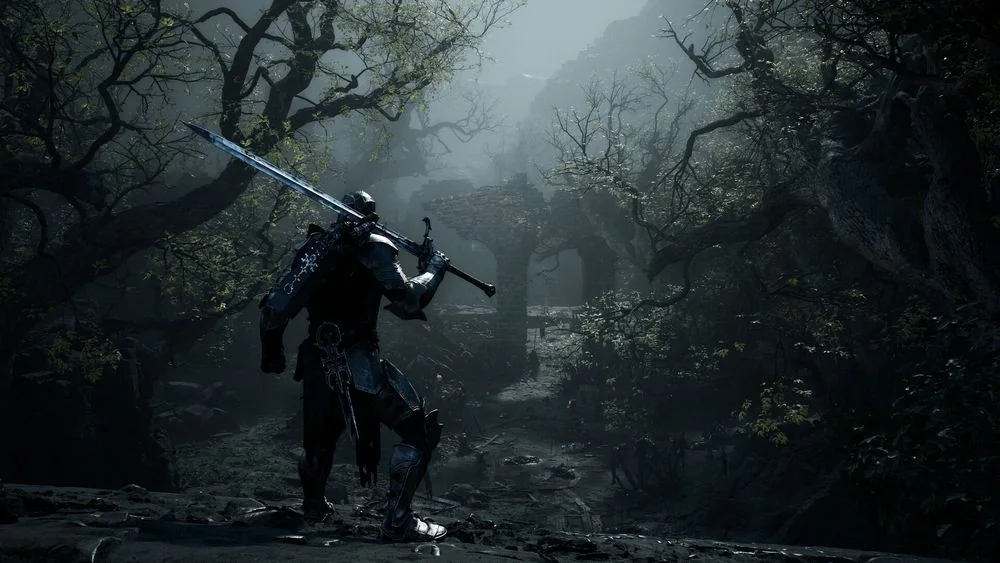
Related videos
Watch the route and combat use
The first guide starts muted in the lower-right corner on desktop. Choose another video to replace it; close the player at any time.